
If you’ve ever generated AI video and watched your character’s hair do a bizarre wiggle or the background melt into chaos, you know the pain of PixVerse V2 Magic Brush was built to solve. Motion control in AI video has been a gamble—until now. PixVerse V2’s Magic Brush (sometimes called the PixVerse motion brush) lets you paint exactly where movement happens and steer its direction, turning random AI guesswork into director-level precision.
In this guide, we’ll walk through what PixVerse V2 Magic Brush actually does, how it works, and why it’s a game-changer for content creators, marketers, and filmmakers who need their AI-generated video to look intentional—not accidental.
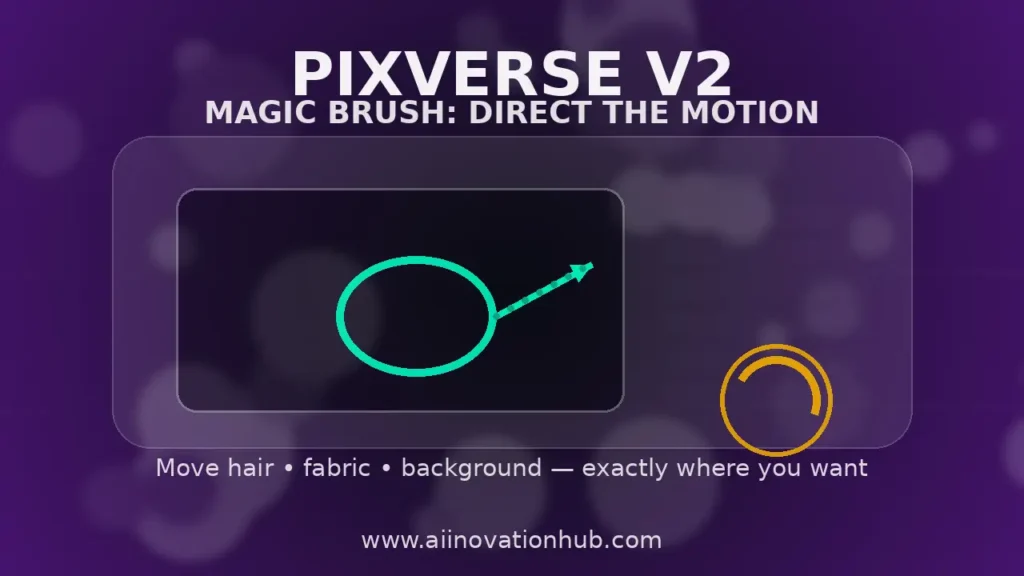
Why PixVerse V2 Magic Brush Matters
Traditional AI video generators operate on a simple premise: you feed in a prompt (text or image), and the AI decides what moves and how. Sometimes you get lucky. Often, you don’t. A gust of wind might blow a character’s scarf in the wrong direction, or a static background might start warping for no reason.
PixVerse V2 Magic Brush changes the equation. Instead of hoping the AI reads your mind, you literally paint motion zones onto your image and draw directional arrows to guide movement. Want only the hair to blow left while the dress fabric flows down? You can do that. Need the background to stay frozen while a character’s hand waves? Magic Brush makes it possible.
This is critical for:
- Content creators building cinematic B-roll or social media clips
- Marketers crafting product videos with controlled motion (fabric, liquid, smoke)
- Filmmakers prototyping scenes before shooting live action
- Educators visualizing concepts (wind patterns, physics demonstrations)
Let’s break down how PixVerse V2 Magic Brush actually works.
What Is PixVerse V2?
PixVerse V2 is an AI-powered video generation platform that offers two core modes:
- Text-to-video: You write a prompt, and PixVerse generates a 4-second video clip from scratch.
- Image-to-video: You upload a static image, and PixVerse animates it based on your description.
Both modes traditionally suffered from the same issue: lack of motion control. You could describe motion (“the woman’s hair blows in the wind”), but the AI interpreted that however it wanted. Sometimes the hair moved. Sometimes the whole scene wobbled. Sometimes nothing happened.
PixVerse V2 text to video and PixVerse V2 image to video both support Magic Brush, but the feature shines brightest in image-to-video workflows, where you already have a precise starting frame and just need to animate specific parts of it.
Magic Brush is PixVerse’s answer to the “AI video lottery.” It’s a visual interface that lets you:
- Select which parts of the frame should move (via brush strokes)
- Direct how those parts should move (via arrows or trajectories)
- Control the intensity of motion (subtle drift vs. dramatic sweep)
This brings PixVerse V2 Magic Brush into the same ballpark as professional motion design tools—but faster, easier, and powered by AI.
How PixVerse V2 Magic Brush Works
The Magic Brush motion control system operates on three layers:
1. Masking (Brush Selection)
You use a brush tool to paint over the areas you want to animate. Think of it like masking in Photoshop or After Effects. If you want only the character’s hair to move, you brush over the hair. If you want fabric to flow, you paint the dress or curtain.
The unpainted areas remain static (or move minimally, depending on the AI’s interpretation of the prompt).
2. Directional Control (Arrows/Trajectories)
Once you’ve masked an area, you draw arrows to indicate the direction of motion. A downward arrow on a waterfall tells PixVerse to make the water flow down. A rightward arrow on hair suggests a breeze from left to right.
You can draw multiple arrows in different directions for complex motion (e.g., leaves scattering in multiple directions, fabric billowing outward).
3. Motion Intensity (Slider)
PixVerse V2 lets you adjust how strong the motion is:
- Low intensity: Subtle drift, breathing, or ambient movement
- Medium intensity: Noticeable motion (hair blowing, fabric swaying)
- High intensity: Dramatic action (explosion debris, rapid camera pan)
These three layers combine to give you directed motion in AI video—a level of control that wasn’t possible in earlier AI video tools.
Case Study: Hair, Dress, and Fabric Motion
Let’s look at a real-world scenario where PixVerse V2 Magic Brush saves the shot.
Problem: You have a portrait of a woman in a flowing white dress, standing in a field. You want:
- Her hair to blow gently to the right
- The dress fabric to flow downward and slightly back
- The background to stay mostly still
Without Magic Brush: You’d write a prompt like “the woman’s hair and dress blow in the wind” and hope for the best. Often, the AI would:
- Move the hair in the wrong direction
- Make the dress wiggle chaotically
- Distort the face or background
With Magic Brush:
- Brush over the hair, draw a right-pointing arrow → hair blows cleanly to the right
- Brush over the dress hem, draw a down-and-back arrow → fabric flows naturally
- Leave the background unpainted → stays static or moves minimally
Result: The shot looks intentional. The motion feels directed, not random. You avoid the “AI jello” effect where everything wobbles unnaturally.
This use case is why PixVerse V2 Magic Brush has become essential for creators who need cinematic quality without the trial-and-error of traditional AI video.
Magic Brush vs. Standard Generation (Comparison Table)
Creative Control Matrix
A technical assessment of standard prompt-based generation versus PixVerse V2 Magic Brush spatial control.
| Control Feature | Standard Generation | Magic Brush (V2) |
|---|---|---|
| Motion Control | Interpretive Relies on semantic prompt interpretation; motion is often randomized or unpredictable. | Direct / Surgical Visual masking paired with directional vectors for localized motion steering. |
| Precision | Low accuracy; the model “guesses” which elements should move. | High accuracy; user defines exact pixel-level zones for animation. |
| Efficiency | 10+ RE-ROLLS Frequent attempts required to align with creative intent. | 1 – 3 RE-ROLLS Repeatable results achieved through explicit spatial constraints. |
| Optimal Utility | Creative exploration, rapid ideation, and visual discovery. | Professional production, specific asset animation, and brand consistency. |
| Operator Effort | Minimal technical entry; limited by prompt engineering skill. | Moderate; requires brush precision and vector planning. |
As the table shows, PixVerse V2 Magic Brush trades a bit of simplicity for a massive gain in control. If you’re serious about using PixVerse V2 image to video workflows for professional projects, Magic Brush is non-negotiable.
Step-by-Step: Using PixVerse V2 Magic Brush
Here’s a practical PixVerse V2 tutorial for getting started with Magic Brush:
Step 1: Upload Your Image
Go to PixVerse V2’s image-to-video interface and upload your base image. Choose a high-quality frame where you know exactly what you want to animate.
Step 2: Activate Magic Brush
Click the “Magic Brush” or “Motion Brush” button in the interface. This opens the masking layer over your image.
Step 3: Paint Motion Zones
Use the brush tool to paint over the areas you want to move. You can adjust brush size and opacity. Be precise—only paint what should animate.
Step 4: Draw Directional Arrows
After masking, switch to the arrow tool. Draw arrows to indicate motion direction:
- Hair blowing right → draw a right-pointing arrow
- Water flowing down → draw a downward arrow
- Smoke rising → draw an upward arrow
You can draw multiple arrows for complex motion patterns.
Step 5: Set Motion Intensity
Use the intensity slider to control how strong the motion is. Start at medium and adjust based on preview results.
Step 6: Write a Supporting Prompt (Optional)
While Magic Brush does most of the work, you can still add a text prompt to clarify context (e.g., “gentle breeze, soft lighting, cinematic”).
Step 7: Render and Review
Hit generate. PixVerse V2 will process your image and apply the motion you’ve directed. Review the result. If adjustments are needed, tweak the brush zones or arrow directions and re-render.
This workflow is what makes PixVerse V2 Magic Brush accessible even to non-technical users. You don’t need to know Python or ComfyUI—just paint and point.
Common Beginner Mistakes with PixVerse V2 Magic Brush
Even with a tool as intuitive as AI motion brush for video, beginners make predictable errors. Here’s what to avoid:
Mistake #1: Painting Too Much
Problem: You brush over the entire image, expecting the AI to figure out what should move.
Fix: Be selective. Only paint the specific elements you want to animate. Leave static areas untouched.
Mistake #2: Overdoing Motion Intensity
Problem: You crank the intensity slider to max, and the result looks like everything’s caught in a hurricane.
Fix: Start at 40-60% intensity. Subtle motion often looks more realistic than dramatic action.
Mistake #3: No Directional Logic
Problem: You draw random arrows without thinking about physics (e.g., water flowing upward, hair blowing in conflicting directions).
Fix: Obey basic physics. If there’s wind, all fabric/hair should move in a consistent direction. If something falls, it should go down.
Mistake #4: Ignoring the Base Frame
Problem: You use a blurry or low-quality image and expect Magic Brush to fix it.
Fix: Magic Brush controls motion, not image quality. Start with a clean, high-resolution frame for best results.
Mistake #5: Forgetting to Mask the Background
Problem: You paint motion on the subject but forget to lock the background, and it starts warping.
Fix: If you want a static background, don’t paint it. The unpainted areas should remain mostly still.
Avoiding these mistakes will drastically reduce the number of re-rolls you need when using PixVerse V2 Magic Brush.
Prompt Tips for Better Results with PixVerse V2 Magic Brush
While Magic Brush motion control does most of the heavy lifting, your text prompt still matters. Here are some PixVerse V2 prompt tips to maximize quality:
1. Describe Motion Style, Not Just Direction
Instead of “hair moves right,” try “hair gently flowing right in a soft breeze.” The AI interprets “gently” and “soft” to avoid harsh, jerky motion.
2. Specify Lighting/Atmosphere
Prompts like “warm golden hour lighting” or “soft studio light” help the AI maintain visual coherence during motion. This prevents the “jello effect” where lighting warps unnaturally.
3. Anchor the Scene
Include grounding details: “standing on solid ground,” “anchored to the floor,” “stable horizon line.” This tells the AI not to wobble the entire frame.
4. Avoid Conflicting Instructions
Don’t write “fast motion” in the prompt while setting low intensity in Magic Brush. Keep prompt and brush settings aligned.
5. Use Negative Prompts (If Available)
If PixVerse supports negative prompts, add “no distortion, no warping, no morphing” to prevent unwanted artifacts.
These PixVerse V2 prompt tips work best when combined with precise brush masking and directional arrows—think of the prompt as the “vibe guide” and Magic Brush as the “technical director.”
PixVerse V2 vs. Kling AI: Motion Control Comparison
How does PixVerse vs Kling AI stack up when it comes to motion control?
Kling AI (by Kuaishou) offers impressive video quality and longer clip durations (up to 10 seconds in some modes). However, Kling’s motion control is largely prompt-based. You describe what you want, and Kling interprets it. There’s no visual brush interface (as of now) to direct motion at a granular level.
PixVerse V2 Magic Brush, by contrast, gives you:
- Visual masking: Paint exactly what moves
- Directional arrows: Point motion where you want it
- Faster iteration: Fewer re-rolls because you’re not relying on prompt luck
When PixVerse Wins:
- You need precise control over specific elements (hair, fabric, liquids)
- You’re working with image-to-video and have a fixed starting frame
- You want to avoid the trial-and-error of pure text prompts
When Kling Might Win:
- You need longer clips (10+ seconds)
- You’re generating from scratch (text-to-video) and don’t need granular motion control
- You prioritize photorealism over directorial precision
For most professional workflows (especially in marketing, product demos, and cinematic prototyping), PixVerse V2 Magic Brush offers better ROI because it reduces wasted generations.
Who Should Use PixVerse V2 Magic Brush?
PixVerse V2 Magic Brush isn’t for everyone—but if you fall into any of these categories, it’s a must-try:
1. Content Creators Building B-Roll
Need atmospheric footage of flowing dresses, blowing leaves, or drifting smoke? Magic Brush lets you art-direct these elements without shooting live video.
2. Marketers Creating Product Videos
Showcasing a fabric product (scarf, curtain, tablecloth)? Use Magic Brush to animate the fabric realistically without a wind machine or green screen.
3. Filmmakers Prototyping Scenes
Storyboard a scene with controlled motion to show clients or collaborators exactly what you’re envisioning before committing to a full shoot.
4. Educators and Explainer Video Producers
Demonstrate physics concepts (wind patterns, water flow, object motion) with precise, repeatable animations.
5. Social Media Managers
Create eye-catching motion graphics for Instagram Reels, TikTok, or YouTube Shorts—where controlled motion = higher engagement.
If you’re tired of rolling the dice with AI video and want directed motion in AI video, PixVerse V2 Magic Brush is your tool.
Final Thoughts: Why PixVerse V2 Magic Brush Is a Game-Changer
AI video generation has come a long way, but until recently, it’s been a “cross your fingers and hope” experience. PixVerse V2 Magic Brush flips that dynamic. It puts you in the director’s chair, letting you paint motion zones and steer movement with the precision of a pro editor—without needing pro-level tools or skills.
The combination of PixVerse motion brush, Magic Brush motion control, and PixVerse V2 image to video workflows creates a powerful ecosystem for anyone who needs AI-generated video that looks intentional, not accidental.
Whether you’re a solo creator, a marketing team, or a filmmaker, PixVerse V2 Magic Brush solves the randomness problem that’s plagued AI video since day one. It’s not perfect (no AI tool is), but it’s the closest thing we have to “Photoshop for motion.”
Ready to dive deeper into AI tools that actually work? Head over to www.aiinovationhub.com for more hands-on guides, tool breakdowns, and real-world workflows that help you get results—not just hype.
Meet EasyAnimate (by Alibaba) — a long-form AI video generator built for one thing creators desperately need: coherence. If you’re tired of characters “melting,” faces changing every few seconds, or a story that forgets itself mid-scene… this tool is basically a stability upgrade for your videos. EasyAnimate focuses on generating longer story-driven clips while keeping the same character identity and visual logic across frames. That means fewer glitches, less “AI chaos,” and more time actually creating instead of fixing.
Want the full breakdown, use cases, and what makes it different from the usual short-clip generators? Read here (full link): https://aiinovationhub.com/easyanimate-long-form-ai-video-generator/
Follow www.aiinovationhub.com for more AI tools that make creators faster (and calmer).
If PixVerse V2 is about directing motion, the next big leap is directing performance. And that’s exactly what OCuLink brings to mini PCs: a clean, high-bandwidth path to external GPUs without the usual bottlenecks. Here’s why this “mini PC + eGPU” combo is turning into a real upgrade strategy: https://bestchinagadget.com/oculink-egpu-mini-pc-revolution/