
The TripoSR 3D model generator is making serious waves in game development, product design, and rapid prototyping circles. Why? Because it transforms a single image or text prompt into a downloadable 3D mesh in under 10 seconds—sometimes as fast as half a second on high-end GPUs. Whether you’re an indie game developer scrambling to build a props library by Friday, an e-commerce team visualizing products in 3D, or an architect sketching concepts that need instant depth,
TripoSR delivers speed that traditional modeling workflows simply can’t match. In a world where time equals money and iteration speed determines creative freedom, this open-source collaboration between Tripo AI and Stability AI has become the go-to tool for anyone who needs 3D assets yesterday.
Looking for the same “fast results” mindset, but in tech you can actually buy and use daily? Head over to https://bestchinagadget.com/ — a reviewer-style hub that breaks down Chinese gadgets, laptops, and smart devices in plain English. Quick picks, real-world angles, and zero fluff for smarter purchases.
How “Image to 3D Model AI” Works in Tripo/TripoSR
Let’s demystify what happens when you upload an image to the TripoSR 3D model generator. The system uses a transformer-based architecture called the Large Reconstruction Model (LRM), which is specifically trained to understand depth, geometry, and spatial relationships from a single 2D photograph. You drop in your chair photo, coffee mug snapshot, or concept art sketch—the model processes it and outputs a complete 3D mesh file in GLB or OBJ format. No multi-camera rigs required, no photogrammetry setup with dozens of angles, just one image and done.
What makes this image to 3D model AI approach revolutionary is the speed-to-quality ratio. The model can generate high-quality 3D models in less than 0.5 seconds on an NVIDIA A100 GPU TripoSR AI, according to official documentation. This isn’t just academic benchmarking—real users report generation times between 3-8 seconds on consumer hardware, which means you can iterate through multiple variations during a single coffee break. The workflow is dead simple: upload image → automatic background removal (if needed) → mesh generation → preview and rotate → download. What used to take hours in Blender or ZBrush now happens faster than you can explain the concept to a client.
The technical foundation is solid. TripoSR leverages the principles of the Large Reconstruction Model (LRM) and brings key advancements that significantly boost both speed and quality of 3D reconstruction TripoSR AI. In practice, this means the model doesn’t just slap polygons together—it understands object structure, predicts hidden surfaces reasonably well, and generates topology that’s clean enough for immediate use in game engines. You’ll still need to tweak UVs and optimize for production, but the starting point is leagues ahead of what automated 3D generation offered even two years ago.
“Text to 3D Model Generator”: When Text Beats Images
Sometimes you don’t have reference photos—you just have an idea. That’s where the text to 3D model generator functionality shines. Instead of hunting for the perfect stock image of a “medieval wooden shield with iron reinforcement,” you type exactly that into Tripo AI’s web interface and get a mesh back in seconds. The text-to-3D pipeline works differently from image-based generation: it first generates a 2D image from your text prompt using diffusion models, then runs that image through the TripoSR reconstruction pipeline to create the final 3D asset.
Here’s the practical guide to effective prompting for props and assets: be specific about form but flexible about details. “Round wooden table with four legs” works better than “table.” Adding material descriptors helps—”rough stone pillar” or “smooth ceramic vase” gives the AI texture cues that translate into better vertex colors. For game assets specifically, mentioning style helps: “low-poly campfire” or “stylized cartoon sword” will push the generation toward simpler geometry that’s easier to optimize later.
The sweet spot for text to 3D model generator usage is rapid concepting and placeholder creation. Need twenty different rock formations for environmental scatter? Type variations like “jagged limestone boulder,” “smooth river rock,” “mossy cliff stone”—each generates in seconds, giving you a library to choose from. You’re not getting hero assets ready for close-up cutscenes, but for background props, architectural blocking, or concept validation, the speed is unbeatable. One game studio reported creating an entire forest props pack (fallen logs, stumps, mushroom clusters, ferns) in under two hours using only text prompts—work that would’ve taken days with traditional modeling.
The limitation is predictability. Text-to-3D is inherently two-step (text→image→3D), so you’re at the mercy of how the image generator interprets your words. You might get five variations before landing on the exact silhouette you wanted. Pro tip: use the web interface to generate the image first, preview it, and only then commit to 3D conversion. This wastes fewer credits and gives you more control over the final mesh shape.
“Single Image 3D Reconstruction” — Why This Is Even Possible So Fast
You’re probably wondering: how does single image 3D reconstruction work when humans need multiple angles to understand 3D space? The answer lies in learned priors—TripoSR was trained on millions of image-3D pairs, learning statistical patterns about how objects look from different angles, how shadows indicate depth, and how common objects are structured. When you feed it a photo of a chair, it’s not just guessing—it’s applying learned knowledge about chair proportions, leg placement, and typical backrest shapes.
The technical principle is surprisingly straightforward: the model takes your input image, encodes it into a latent representation that captures spatial features, then decodes that representation directly into a 3D mesh using a triplane-based representation. This happens in a single forward pass through the neural network—no iterative refinement, no multi-view consistency checks, just straight input-to-output transformation. That’s why it’s so fast.
TripoSR exhibited superior performance in both qualitative and quantitative evaluations, outperforming other open-source alternatives across multiple public datasets TripoSR AI, according to the official GitHub repository. In plain English, this means the model produces meshes that look better and match the input image more accurately than competing free tools. The quality isn’t magic—expect rough topology, vertex colors instead of proper UV-mapped textures (unless you use texture baking), and occasional geometry artifacts on complex or occluded areas. But for draft quality and rapid iteration, it punches way above its weight class.
The GPU requirement is real but not extreme. While the A100 benchmark shows sub-second generation, most users run TripoSR on RTX 3060/4060 cards and still see 5-10 second generation times. The model loads entirely into VRAM (around 6GB), processes in one shot, and outputs a mesh file. CPU inference is possible but slow—expect 30-60 seconds per generation, which is still faster than manual modeling but loses the “instant feedback” feel that makes iteration enjoyable.
Hardware Performance Benchmarks
Comparison of generation latency and quality profiles across enterprise and consumer hardware configurations.
| Hardware | Generation Time | Quality Settings |
|---|---|---|
| NVIDIA A100 GPU | 0.5 seconds | Resolution 256 Standard Mesh |
| RTX 4090 GPU | 1-2 seconds | Resolution 256 Standard Mesh |
| RTX 3060 GPU | 5-8 seconds | Resolution 256 Standard Mesh |
| CPU (16-core) | 30-60 seconds | Resolution 128 Reduced Quality |
“3D Model from Photo Online”: Fastest Workflow for Beginners
The absolute fastest way to create a 3D model from photo online is using Tripo AI’s web interface at tripo3d.ai. No installation, no Python environments, no command-line wrestling—just a browser and your image file. Here’s the step-by-step mini-guide:
Step 1: Prepare Your Photo
Clean backgrounds work best. If your object sits on a white table against a plain wall, you’re golden. The automatic background removal is decent but not perfect—transparent PNGs give you more control. Lighting matters: avoid harsh shadows or blown-out highlights. A soft, evenly lit photo from a slight 3/4 angle (not straight-on) gives the AI enough information to infer depth without confusing it with extreme perspective.
Step 2: Upload and Configure
Drag your image into the upload area. The interface shows preview options: enable/disable background removal (off if you already have transparency), adjust foreground ratio (how much of the frame your object occupies—85% is default), and select output resolution. Higher resolution (256 vs 128) means more polygons and longer processing but better detail. For quick tests, stick with default settings.
Step 3: Generate and Preview
Hit generate. Wait 3-10 seconds depending on server load. The preview window lets you rotate the mesh in real-time—this is where you catch problems. Check the backside for missing geometry (common if your input photo had zero information about the rear of the object). Examine thin parts like handles or stems—these sometimes fail to reconstruct cleanly. If the result is unusable, try a different photo angle rather than tweaking settings.
Step 4: Download Your Mesh
Export as GLB (best for web/AR viewers and Unity) or OBJ (best for Blender, 3ds Max, other DCC tools). The GLB includes vertex colors baked in; the OBJ comes with an MTL material file. File sizes are small—typically 2-10MB for props-sized assets, which makes them great for rapid sharing and version control.
Common Input Image Mistakes:
- Busy backgrounds: Patterned rugs, cluttered desks, or outdoor scenes confuse the background removal algorithm. Use plain backdrops when possible.
- Extreme angles: Top-down or bottom-up shots provide less spatial information than 3/4 perspective views. Think “how a human would naturally photograph an object for sale.”
- Low contrast: A white mug on a white background gives the AI nothing to work with. Add lighting or background separation.
- Motion blur or low resolution: Blurry photos produce melted-looking meshes. Use sharp, well-focused images minimum 1024px on the longest side.
The 3D model from photo online workflow is perfect for beginners because mistakes are cheap. Each generation takes seconds and costs minimal credits on the free tier. Experiment with different photos of the same object, compare results, and learn what input styles work best for your use case.

“AI 3D Asset Generator for Games”: Props Pack in an Evening
Here’s where AI 3D asset generator for games usage gets real: you’re two weeks from an alpha deadline, your level designers need environmental props, and your 3D artist is buried in character work. Solution? Spend one evening with TripoSR generating a starter library. This isn’t theoretical—studios are doing this right now.
Case Study: Medieval Village Props
Text prompts used: “wooden barrel with iron rings,” “stone well with bucket,” “clay jug,” “iron sword with leather grip,” “wooden fence post,” “market stall canopy,” “hay bale,” “stone fountain,” “wooden sign post,” “torch holder.” Generation time per asset: 5-10 seconds. Total time to generate 50 variations: under one hour. Time saved vs manual modeling: approximately 30-40 hours.
The economics are brutal and obvious. Even if you spend another 2-3 hours cleaning up meshes, optimizing topology, and adding proper UV layouts, you’re still 35+ hours ahead. For indie studios or solo developers, this is the difference between shipping and not shipping. For AA/AAA studios, it’s the difference between outsourcing low-priority props (expensive, slow turnaround) and having environment artists focus on hero assets that actually need human craft.
Where AI Generation Excels:
- Background scatter objects (rocks, vegetation, debris)
- Architectural blocking elements (walls, pillars, stairs)
- Container objects (crates, barrels, shelves)
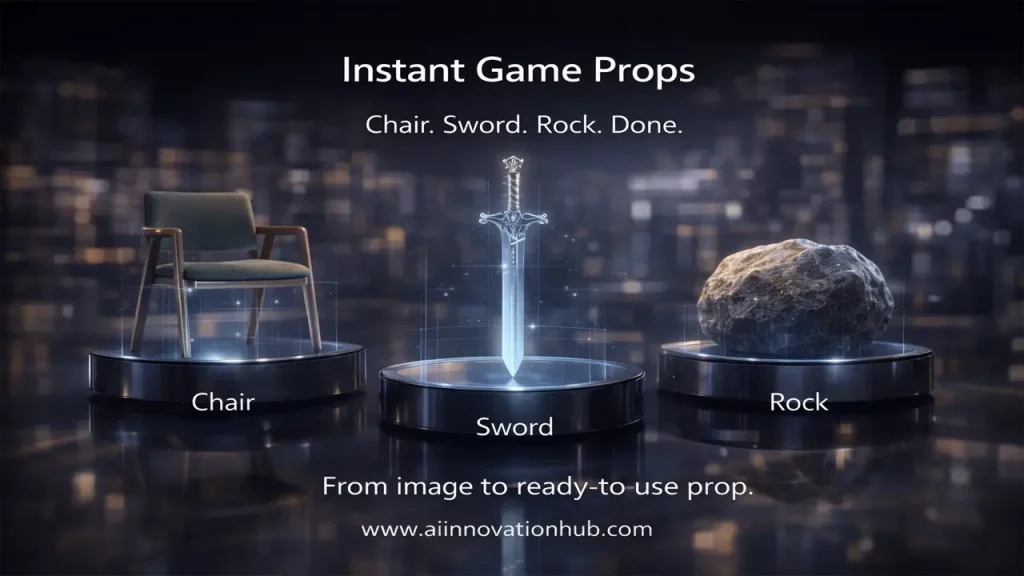
- Simple weapons and tools (shovels, axes, basic swords)
- Furniture (tables, chairs, benches, beds)
Where You Still Need Manual Control:
- Collision meshes (always custom-build these for physics accuracy)
- Hero props with brand-specific styling (the AI won’t nail your art direction perfectly)
- Topology optimization (generated meshes often have uneven polygon distribution)
- UV layout for efficient texture atlasing (auto-UVs are functional but not optimal)
- Normal map baking and material setup (vertex colors are a starting point, not the finish line)
Pro workflow: Generate 3-5 variations of each needed asset using different prompts or reference photos. Import all into Blender, pick the best geometry base, retopologize if needed (usually not for background props), unwrap UVs properly, bake ambient occlusion and normals from the high-poly vertex color version to a clean texture, then import final assets into Unity/Unreal with optimized settings. This hybrid approach—AI for rough generation, human for production polish—is the current sweet spot.
3D Asset Pipeline Efficiency Analysis
A comparison of AI-assisted generation cycles against traditional manual workflows across various asset complexities.
| Asset Type | AI Generation | Manual Cleanup | Total Time Saved |
|---|---|---|---|
| Simple Prop | 10 Seconds | 5-10 Minutes | ~90% Saved |
| Furniture | 10 Seconds | 15-20 Minutes | ~80% Saved |
| Weapons | 10 Seconds | 20-30 Minutes | ~75% Saved |
| Architecture | 10 Seconds | 30-45 Minutes | ~70% Saved |
* Manual cleanup estimates include retopology, UV unwrapping, and material assignment to reach production-ready quality.
“TripoSR Open Source”: What the Open Model Brings
The “open source” part of TripoSR open source is significant. This is the official codebase for TripoSR, a state-of-the-art open-source model for fast feedforward 3D reconstruction from a single image, collaboratively developed by Tripo AI and Stability AI TripoSR AI. Translation: the model weights, inference code, and training methodology are public on GitHub under permissive licensing. You can download TripoSR, run it locally on your own hardware, modify the code, integrate it into commercial pipelines, and even retrain it on custom datasets—all without paying licensing fees.
Who Benefits from Local/Pipeline Integration:
- Game studios: Build automated asset generation directly into level editor tools. Concept artists sketch props, hit a button, get immediate 3D previews without leaving their workflow.
- E-commerce platforms: Integrate TripoSR into product upload flows—sellers photograph their items, the system auto-generates 3D models for AR preview without manual intervention.
- Architectural firms: Process client reference photos into 3D blocking geometry for rapid spatial studies and presentations.
- Educational institutions: Run the model on local servers for teaching 3D reconstruction concepts without cloud dependency or API costs.
The ecosystem is growing fast. Community developers have created Blender add-ons, ComfyUI nodes, Stable Diffusion WebUI extensions, and Unity plugins that wrap TripoSR functionality into familiar interfaces. TripoSR is a state-of-the-art open-source model for fast feedforward 3D reconstruction from a single image arXiv, and these integrations make it accessible to non-technical artists. You don’t need to touch Python if someone’s already packaged it into a Blender button.
The community aspect accelerates quality improvements. Since the code is open, researchers and developers submit bug fixes, optimization patches, and experimental features. Model quantization makes it run faster on lower-end GPUs. Alternative export formats get added. Training scripts improve. This decentralized development means the tool evolves faster than any single company could push it forward—classic open-source advantage.
Licensing Clarity:
The TripoSR model itself is released under the MIT license (check official repo for current terms). Generated outputs depend on your usage tier if using Tripo AI’s web service: free tier outputs are CC BY 4.0 (attribution required, public sharing), paid tiers grant commercial rights. For local open-source deployment, you own your outputs, but always verify licensing for your specific use case before deploying commercially.

“GLB Download 3D Model”: Formats, Export, and Pre-Import Checks
When you GLB download 3D model files from TripoSR or Tripo AI, understanding what you’re getting saves hours of frustration. GLB (GL Transmission Format Binary) is a container format that packages geometry, vertex colors or textures, and material data into a single file. It’s optimized for real-time rendering (web, AR, game engines) with efficient loading and compact file size.
What to Check Before Importing into Blender:
- Scale: Open the GLB in a viewer first. TripoSR doesn’t enforce real-world scale, so your “chair” might be 0.1 units tall or 100 units tall. Measure against a known reference, adjust scale on import or via scripts.
- Mesh Density: Inspect polygon count. Props typically range 5k-50k triangles. If you see 200k for a simple object, you’ll need decimation. High poly is fine for baking but not for real-time use.
- Holes and Non-Manifold Geometry: Rotate the preview to check for missing faces, especially on undersides or complex areas. TripoSR does well but isn’t perfect—thin handles, narrow gaps, or extreme occlusion can produce mesh errors.
- Vertex Colors vs Textures: Basic exports use vertex colors (color data stored per-vertex, no UV mapping needed). This is fine for prototyping but limits texture detail. If you exported with “bake texture” enabled, you’ll get a UV-mapped texture file alongside the GLB—this gives much better visual quality at the cost of slightly larger file size.
What to Check Before Importing into Unity:
- Material Setup: GLB materials import as Unity Standard Shader variants. Vertex color materials need specific shader selection (some Unity versions don’t auto-assign vertex color shaders).
- Colliders: Generated meshes are NOT game-ready for physics. Always create simplified collision meshes or use primitive colliders—never use the visual mesh as collision geometry unless absolutely necessary.
- Lightmapping UVs: Auto-generated UVs are channel 0 only. If you need lightmapping (channel 1), unwrap in Blender or use Unity’s “Generate Lightmap UVs” option on import.
- Pivot Point: Default pivot is object center. For props that sit on surfaces (tables, chairs), manually move pivot to bottom-center in your DCC tool before export to avoid floating or sinking when placed in scenes.
What to Check Before Importing into Unreal Engine:
- FBX Conversion: While Unreal supports GLTF, FBX is still the gold standard for complex projects. Use Tripo’s API format conversion or Blender to convert GLB→FBX if you need Unreal’s full material pipeline.
- Nanite Compatibility: High-poly TripoSR meshes can be Nanite candidates (Unreal 5.0+), but check for proper UV channels and no degenerate triangles first.
- Material Baking: Vertex colors survive import but aren’t optimal for Unreal’s physically-based rendering. Plan to bake to proper textures with roughness/metallic/normal maps for production quality.
OBJ Export Alternative:
OBJ + MTL export gives you more manual control. The OBJ file contains only geometry, the MTL file contains material definitions (referencing texture image files), and textures export separately. This is messier for web use but better for DCC pipelines where you want to manually tweak materials in Substance Painter or Photoshop before final assembly.
3D File Format Comparison
A technical guide for selecting the optimal export format based on target platforms and asset complexity.
| Format | Best Use Case | Contains | File Size |
|---|---|---|---|
| GLB | Web AR Unity | Mesh, materials, and textures embedded into a single binary file. Ideal for cross-platform sharing. | Small (2-10MB) |
| OBJ + MTL | Blender Editing | Standard geometry in OBJ; material definitions in MTL; textures as external image files. | Medium (5-15MB) |
| FBX | Unreal Animation | Proprietary format supporting mesh, materials, and complex rigging/animation data. | Medium (5-20MB) |
| STL | 3D Printing | Pure triangular mesh geometry only. No support for color, materials, or textures. | Small (1-5MB) |
“Tripo API 3D Generation”: Automation for Studios and Marketing
The Tripo API 3D generation capability transforms TripoSR from a manual tool into an automated pipeline component. Tripo is designed to transform text and image inputs into high-fidelity 3D models and provides developers with a flexible, efficient, and scalable solution to incorporate 3D model generation into applications and services Tripo3d, according to official API documentation.
Real-World Use Cases Where API Actually Pays Off:
E-Commerce Product Catalogs
Imagine an online furniture store with 10,000 SKUs. Traditional 3D modeling would cost $50-200 per asset—total budget: $500k-$2M. With Tripo API integration, sellers upload product photos during listing creation, the system auto-generates 3D models for AR preview, and shoppers can visualize furniture in their space via phone cameras. The Basic plan includes 300 credits monthly Tripo AI, while professional plans offer 3000+ credits for higher volume automation. Cost per model drops to pennies when amortized across thousands of products.
Game Asset Generation Pipelines
A mobile game studio needs 500 unique environmental props per month. Manual modeling: 2-4 hours per asset × $50/hour = $50k-100k monthly spend. API automation workflow: concept artists sketch or find reference photos → automated upload to Tripo API → batch generation → automated import to Unity → manual QA and optimization for 20% of assets. Total time: ~40 hours artist time + server costs. Savings: 60-80% reduction in asset pipeline costs.
Real Estate Visualization
Architectural firms processing client projects need rapid 3D blocking from reference photos. API integration with internal project management tools: client uploads site photos → API generates 3D terrain and building blocks → architects refine in Rhino/Revit. Instead of 8 hours of manual 3D blocking per project, they spend 1 hour on refinement. Across 50 projects monthly, this saves approximately 350 hours of billable time.
Content Creation Teams
YouTube channels and marketing agencies producing 3D motion graphics need asset libraries. API automation: content manager inputs product descriptions → batch generation of multiple 3D props → Cinema 4D import for scene composition. One animator can produce 5-10 fully rendered product showcases per week instead of 1-2 without AI asset generation.
API Pricing Reality Check:
Professional plan costs $15.9/Month with 3000 credits monthly, 10 concurrent tasks, and 7-day history Tripo AI. For context, 3000 credits typically generates 120 image-to-3D models or 40 higher-quality text-to-3D models. Enterprise plans scale to 25,000+ credits with dedicated support and higher rate limits. The ROI calculation is straightforward: if one auto-generated asset saves 2 hours of artist time ($100+ labor cost), you break even at 6 models per month on the basic plan. Everything beyond is pure savings.
Technical Integration Basics:
RESTful API endpoints accept image URLs or text prompts, return task IDs, and provide webhook notifications when generation completes. You fetch the resulting GLB/OBJ files programmatically and pipe them directly into your content pipeline. Documentation includes Python, JavaScript, and cURL examples. Authentication via API keys, rate limiting per plan tier, and batch processing support for bulk operations.
The automation advantage isn’t just speed—it’s consistency and scalability. Once your pipeline is built, you can process 10 assets or 10,000 with the same reliability. Quality is standardized (which cuts QA time), and the system runs 24/7 without breaks.

“Fast 3D Generation Under 10 Seconds” — Final Verdict + Next Steps
Let’s be honest about who wins with fast 3D generation under 10 seconds and who should stick with traditional workflows.
TripoSR/Tripo Is Perfect For:
- Indie game developers who need asset volume more than per-asset perfection
- Product designers rapid-prototyping physical goods and need quick 3D visualization
- E-commerce businesses adding AR try-on features without hiring a 3D team
- Marketing agencies producing 3D product animations on tight deadlines
- Educators teaching 3D concepts without requiring students to master complex software
- Hobbyists and creators exploring 3D without the learning curve of Blender/Maya
Traditional Manual Modeling Is Still Better For:
- Hero assets requiring pixel-perfect art direction and brand consistency
- Character modeling where topology flow matters for animation deformation
- Architectural visualization requiring exact real-world measurements and materials
- VFX work needing subdivision-surface-ready topology for close-up rendering
- Projects where you have more time than budget and want full creative control
The truth is, most professional workflows will use both. TripoSR handles the grunt work—background props, placeholder geometry, concept validation, rapid iteration. Human artists focus on what matters: art direction, storytelling, polish, and the 20% of assets that occupy 80% of screen time.
Speed really is the new luxury. Not because fast is inherently better, but because it gives you more iteration cycles within the same deadline. Instead of building one version and hoping it works, you generate five, pick the best foundation, refine it, and ship with confidence. That’s the workflow transformation happening right now.
Ready to dive deeper? The 3D generation space is evolving monthly. For more guides on AI-powered 3D workflows, integration tutorials, and comparative tool analysis, explore additional resources at www.aiinovationhub.com. The future of 3D creation isn’t replacing artists—it’s giving artists superpowers to create more, faster, without burning out on repetitive technical work.
Whether you’re generating your first 3D asset tonight or architecting an enterprise pipeline for next quarter, the tools are here, they’re open, and they’re ready to use. The only question left is: what will you create?
I don’t even know how I ended up here, but I thought this post was great. I don’t know who you are but certainly you are going to a famous blogger if you aren’t already 😉 Cheers!
Классно, что пишете про транспортные связки — это экономит дни.Читая ваш блог, чувствую, как туризм объединяет. Невероятное спасибо за эмоции.