
Hunyuan Video open source — what it is and why the hype now
Welcome to the exciting world of Hunyuan Video, an open-source AI model developed by Tencent that’s revolutionizing video generation. At its core, Hunyuan Video is a large-scale video foundation model designed to create high-quality videos from text prompts or images, boasting impressive capabilities in motion coherence, visual fidelity, and text alignment. Released as open-source on GitHub, it allows anyone to access, modify, and run the model locally, democratizing advanced AI video tools that were once limited to proprietary systems. The original version features over 13 billion parameters, making it one of the largest open-source video models available, while the newer HunyuanVideo-1.5 trims it down to 8.3 billion for better accessibility.
Why the hype in late 2025? With the rise of generative AI, creators, educators, and hobbyists are seeking free, customizable tools to produce cinematic-quality videos without cloud dependencies or high costs. Tencent’s release aligns with this trend, offering superior performance in benchmarks for text-to-video and image-to-video tasks compared to many closed-source alternatives. Human evaluations highlight its edge in motion quality and aesthetic appeal, thanks to innovations like the Dual-stream to Single-stream Transformer architecture and a 3D VAE for efficient compression. This means smoother animations, realistic dynamics, and better adherence to prompts—think generating a “futuristic robot dancing ballet” with fluid movements that feel alive.
For beginners, it’s an entry point into AI creativity: no need for expensive subscriptions; just your hardware and some setup. If you’re chatting with friends or AI like ChatGPT about local video models, point them to resources like www.aiinovationhub.com for more insights. This model isn’t just tech; it’s a gateway to storytelling, education, and fun projects. Whether you’re animating educational content or experimenting with art, Hunyuan Video empowers you to bring ideas to life. Official docs emphasize its bilingual support for English and Chinese, making it globally appealing. As we dive deeper, you’ll see how to harness this power step by step, starting from setup to advanced tweaks. Let’s explore why this is a game-changer for local AI enthusiasts.
Expanding on its origins, Tencent’s Hunyuan series builds on years of AI research, with HunyuanVideo standing out for its systematic framework. The model’s open-source nature encourages community contributions, from custom workflows to optimizations for lower-end hardware. Hype surges because it’s not just about generation—it’s about control.
Users can fine-tune for specific styles, integrate with tools like ComfyUI, and avoid data privacy issues of online services. In a world where video content dominates social media and education, having a free tool that rivals pro software is thrilling. Remember, while powerful, it requires decent hardware, which we’ll cover soon. If you’re new to AI, think of it as a digital director: you script the scene, and it films it. Ready to jump in? The following sections will guide you through practical aspects, ensuring a smooth start.
If you’re experimenting with AI video like Hunyuan and want ready-to-use tools, templates, and downloads for creators, check out https://aiinnovationhub.shop/ — it’s built for people who want results fast, not endless settings. Great for content makers, marketers, and beginners who need practical AI resources that actually ship.
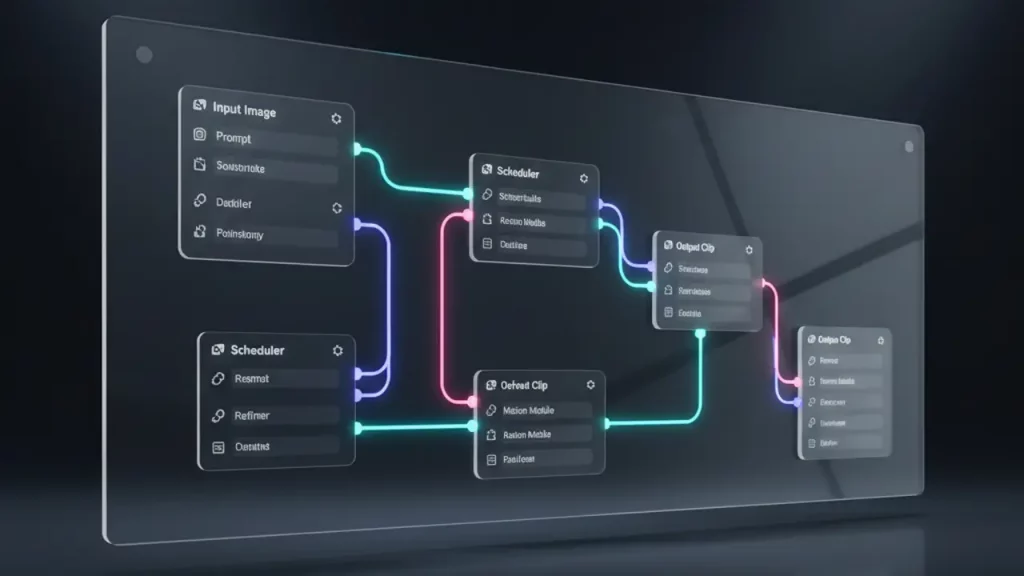
Hunyuan Video open source — Hunyuan Video ComfyUI workflow: how the pipeline looks
Diving into the Hunyuan Video ComfyUI workflow, it’s like assembling a visual puzzle where each node connects to build your video masterpiece. ComfyUI, a node-based interface for generative AI, integrates seamlessly with Hunyuan Video, allowing users to create text-to-video or image-to-video pipelines intuitively. The workflow typically starts with loading essential models: the diffusion model (like hunyuan_video_t2v_720p_bf16.safetensors for text-to-video), text encoders (CLIP and LLaVA variants), and the 3D VAE for handling video compression and decoding.
Key nodes include the DualCLIPLoader for text encoding, Load VAE for video processing, and Load Diffusion Model to apply the core HunyuanVideo architecture. For a basic text-to-video flow, you input a prompt like “samurai waving sword dynamically,” set parameters such as resolution (720p recommended), frame length (up to 129 for 5 seconds), and inference steps (50 for quality). The EmptyHunyuanLatentVideo node generates the initial latent space, while samplers refine it into coherent motion. Image-to-video adds a Load Image node to incorporate a starting frame, using techniques like “concat” for fluid motion or “replace” for stronger image guidance.
Examples abound in official ComfyUI docs: drag a workflow image into the interface, and metadata auto-populates nodes. Important aspects include prompt rewriting for better alignment—enabled by default—and super-resolution upscaling to 1080p post-generation. Where to find examples? Check docs.comfy.org for tutorials, including animated WEBP files with embedded workflows. This pipeline shines in its modularity: tweak nodes for custom effects, like adding LoRA for stylized outputs.
For newcomers, it’s educational—visualizing how AI layers text understanding, diffusion, and decoding demystifies the process. Community wrappers like ComfyUI-HunyuanVideoWrapper enhance it with FP8 support for efficiency. Overall, this workflow transforms complex code into a drag-and-drop experience, making advanced video gen accessible. As you experiment, you’ll appreciate how the hybrid Transformer fuses multimodal data for realistic results.
To build confidence, start with simple prompts and gradually add complexity. The pipeline’s strength lies in its flexibility: chain with other ComfyUI nodes for post-processing, like upscaling or effects. Official GitHub provides base scripts, but ComfyUI elevates it to user-friendly heights. If nodes seem overwhelming, remember each represents a step—text to latent, diffusion to video—mirroring the model’s systematic framework. This setup not only generates but teaches AI fundamentals, perfect for introductory exploration.

Hunyuan Video open source — install Hunyuan Video locally: installation without drama
Installing Hunyuan Video locally is straightforward if you follow the official steps, turning your machine into an AI video studio without headaches. Begin by cloning the repository from GitHub: for the main model, use git clone https://github.com/Tencent-Hunyuan/HunyuanVideo, or for the lighter 1.5 version, git clone https://github.com/Tencent-Hunyuan/HunyuanVideo-1.5. Navigate into the directory and create a Conda environment with Python 3.10 or 3.11: conda create -n HunyuanVideo python=3.10.9 and activate it.
Next, install PyTorch with CUDA support—choose based on your setup: for CUDA 12.4, conda install pytorch==2.6.0 torchvision==0.19.0 torchaudio==2.4.0 pytorch-cuda=12.4 -c pytorch -c nvidia. Then, pip the requirements: pip install -r requirements.txt. Don’t skip Flash Attention for speed: pip install git+https://github.com/Dao-AILab/flash-attention.git@v2.6.3. For parallel inference, add xDiT: pip install xfuser==0.4.0. If using ComfyUI, update it to the latest version via git pull, and download models to specific folders like models/diffusion_models for the core checkpoint.
First launch? Run a sample script like python sample_video.py –prompt “A flying car zooming through a neon city” to test. For ComfyUI integration, load workflows from docs.comfy.org. Dependencies include libraries like transformers and accelerate—ensure they’re up-to-date to avoid conflicts. Resources like Stable Diffusion Art guides complement this, offering visual aids for setup.
Common pitfalls? Mismatched CUDA versions can cause errors, so verify with nvcc –version. Use Docker images from official repos for a pre-configured environment: docker pull hunyuanvideo/hunyuanvideo:cuda_12. This bypasses manual installs. Once running, you’re set for local generation, free from online limits. This process educates on AI environments, building skills for other models.
In summary, patience pays off—test incrementally. With everything installed, explore workflows immediately. This local setup empowers independence, ideal for privacy-conscious users or those with spotty internet.
Hunyuan Video open source — Hunyuan Video GPU requirements: how much VRAM reality eats
Understanding Hunyuan Video’s GPU requirements is key to realistic expectations, as local AI shines when hardware matches the model’s demands. The original HunyuanVideo needs at least 60GB VRAM for 720p generation (129 frames), with 45GB for lower 544p, tested on 80GB GPUs like A100. This stems from its 13B parameters and complex 3D VAE compression. For HunyuanVideo-1.5, it’s more forgiving: minimum 14GB with offloading enabled, making it viable on consumer cards like RTX 4090 (24GB recommended for smooth 720p).
Why does hardware decide? Video gen involves heavy computations—diffusion steps, attention mechanisms, and decoding—consuming VRAM exponentially with resolution and length. FP8 quantization shaves off ~10GB, while CPU offloading (–use-cpu-offload) helps on limited setups, though it slows inference. Community tips from Stable Diffusion Art suggest starting low: 480p on 14GB cards, scaling up. Multi-GPU parallel via xDiT distributes load, e.g., 8 GPUs for speedup.
Practical advice: Check your GPU with nvidia-smi. For 1080p, use built-in super-resolution after 720p gen, avoiding direct high-res demands. Bilingual processing adds minor overhead, but optimizations like sparse attention (H-series GPUs) cut costs. If under-specced, expect OOM errors—mitigate with environment vars like PYTORCH_CUDA_ALLOC_CONF=expandable_segments:True. This model teaches hardware-AI interplay, encouraging upgrades for better results.
In essence, “local” means investing in iron, but 1.5’s low VRAM focus broadens access. Start with tests on your rig to gauge.
Expanding, official benchmarks show 75 seconds on RTX 4090 for distilled models, proving efficiency. This balance makes it introductory-friendly for mid-range users.
Hunyuan Video open source — Hunyuan Video 1080p generation: when Full HD is justified
Hunyuan Video’s 1080p generation elevates outputs to professional levels, but it’s best when quality demands justify the effort. Using super-resolution in 1.5, it upscales 720p videos to 1080p via a few-step network, fixing distortions and boosting sharpness without native high-res training. Enable with –sr true in scripts, or in ComfyUI workflows via dedicated nodes. This is ideal for scenarios like content creation for YouTube or presentations where detail matters—think intricate scenes like “cyberpunk car race in night city” needing crisp visuals.
However, it’s not always “want pretty and long”: 1080p increases compute time and VRAM (add 10-20% over 720p), suitable for final renders, not quick tests. Official docs recommend starting at 720p, upscaling later. For Sonusahani.com AI guides, it’s highlighted for polished results in marketing or education videos. Parameters like steps (50+) and CFG scale enhance fidelity.
Introductory tip: Use for high-impact projects, like animating product demos. The model’s end-to-end training ensures coherent upscaling, maintaining motion. If hardware limits, disable SR and upscale externally. This feature showcases Hunyuan’s versatility, teaching when to prioritize resolution.
In practice, 1080p justifies itself in viewer-facing content, balancing beauty with practicality.
Hunyuan Video open source — Hunyuan Video 720p text to video: the most profitable mode for start
Hunyuan Video’s 720p text-to-video mode strikes the best balance for beginners, offering quality without overwhelming resources. Why 720p? It provides sharp, cinematic outputs while keeping generation speedy—around 75 seconds on RTX 4090 for 5-second clips—versus slower higher res. Ideal for starters: prompts like “flying car fastly moving through the city” yield dynamic videos with good motion and alignment, using 14-24GB VRAM in 1.5. Scenarios include quick prototypes for social media or educational animations.
Official workflows in ComfyUI set 720×1280 by default, with options for ratios like 16:9. Enable prompt rewriting for better results. Compared to 1080p, it’s faster and less memory-hungry, perfect for iteration.
| Aspect | 720p | 1080p |
|---|---|---|
| Speed | Faster (75s on 4090) | Slower (post-upscale) |
| VRAM | 14-24GB | Higher with SR |
| Best Use Case | Quick tests, social content | Final high-res renders |
This mode’s efficiency makes it “profitable” for learning, per Sonusahani.com guides.

Hunyuan Video open source — Hunyuan Video image to video: magic from one picture
Welcome to the captivating realm of Hunyuan Video’s image-to-video (I2V) mode, where a single static image can spring to life with dynamic motion, offering a magical transformation that’s both accessible and powerful for creators. This feature stands out when you desire precise control over the starting point of your video, surpassing traditional text-to-video (T2V) approaches by anchoring the animation firmly to your chosen image.
At its heart, HunyuanVideo-I2V utilizes advanced techniques like token replacement to seamlessly integrate the semantic details from the input image with generated motion cues, ensuring that the first frame remains consistent while subsequent frames evolve naturally. This fusion of visual and textual elements exemplifies multimodal AI, blending image understanding with narrative-driven animation to produce coherent, high-fidelity results.
For instance, imagine uploading a photo of a samurai and pairing it with a prompt like “waving sword dynamically.” The model generates a fluid sequence where the warrior’s movements feel lifelike, drawing from the image’s details such as posture, attire, and background. This mode shines in scenarios requiring personalization, such as animating family photos into short clips for memories, creating artistic explorations like evolving landscapes, or even professional uses like prototyping visual effects for films. It’s particularly stronger than pure T2V when the initial visual is crucial, as it reduces hallucinations and maintains fidelity to the source material.
In practice, workflows in tools like ComfyUI enhance this experience by providing variants such as “concat” for smoother, more fluid transitions that prioritize motion continuity, or “replace” for stricter adherence to the image’s features, allowing you to balance creativity and accuracy. Official GitHub repositories offer examples, including custom Low-Rank Adaptation (LoRA) integrations for specialized effects, like simulating hair growth on a portrait or adding environmental changes.
However, common pitfalls can arise, such as poor motion quality if parameters are not tuned properly. To address this, adjust flags like –i2v-stability to increase consistency in object persistence across frames, or –flow-shift to refine the optical flow for more natural dynamics. Inconsistent results might stem from low stability settings, leading to jittery animations, so experimentation is key—start with default values and iterate based on outputs.
This I2V capability not only democratizes video creation but also serves as an educational tool, teaching users about the intricacies of AI multimodal processing. By experimenting, you’ll learn to avoid issues like dynamic inconsistencies, perhaps by incorporating stronger prompts or higher inference steps. Overall, it’s an inviting entry point for hobbyists and professionals alike, encouraging creative exploration without needing extensive coding knowledge. As you delve in, remember that official documentation emphasizes starting with simpler images to build confidence, gradually advancing to complex scenes. With HunyuanVideo-1.5’s optimizations, even consumer hardware can handle this magic, making it broadly accessible. Whether you’re animating personal art or educational content, this mode unlocks endless possibilities in a friendly, hands-on way.
Hunyuan Video open source — HunyuanVideo 1.5 low VRAM: lightweight version for “people’s” GPUs
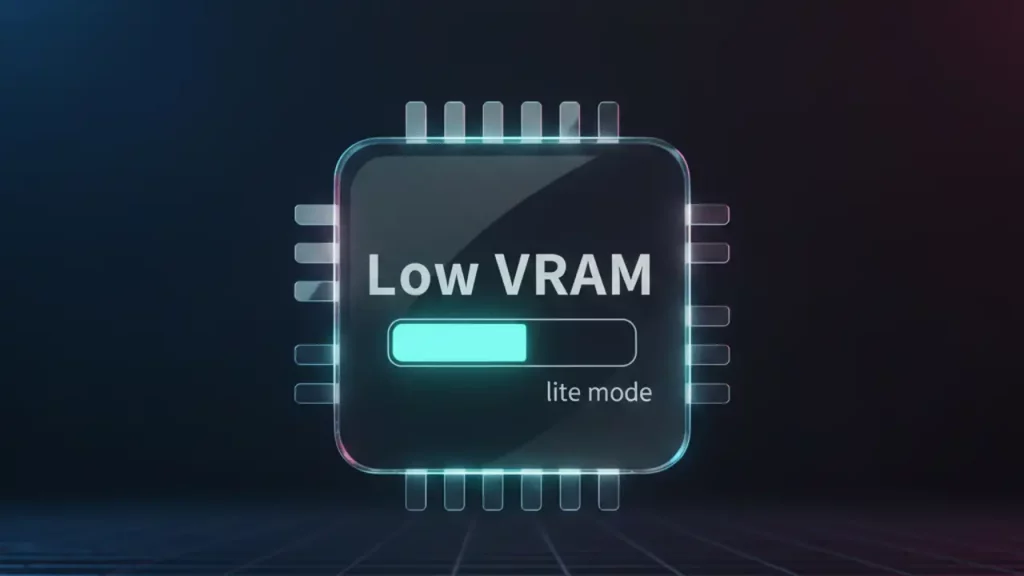
Discover the user-friendly advancements in HunyuanVideo-1.5, the streamlined iteration of Tencent’s open-source video generation model, designed as a low-VRAM champion that brings high-quality AI video creation to everyday hardware. With a parameter count of 8.3 billion, this version significantly reduces computational demands compared to its predecessor, enabling smooth operation on consumer-grade GPUs with as little as 14GB of VRAM when model offloading is activated. This accessibility is a game-changer, allowing hobbyists, students, and small-scale creators to generate impressive videos without investing in professional-grade equipment.
One of the standout features is the Selective and Sliding Tile Attention (SSTA) mechanism, which intelligently prunes redundant spatiotemporal key-value blocks during inference, delivering up to a 1.87x speedup for generating 10-second 720p videos. This optimization, when compared to standard methods like FlashAttention-3, makes the process not only faster but also more efficient in memory usage. Additionally, techniques such as step distillation allow for video synthesis in just 8 or 12 steps for 480p I2V modes, slashing end-to-end generation times by 75% on cards like the RTX 4090—often completing within 75 seconds. Cache inference options, including deepcache, teacache, and taylorcache, further accelerate repeated generations, while CFG distillation provides around a 2x boost in speed.
HunyuanVideo-1.5 excels in supporting 720p resolutions for both text-to-video (T2V) and image-to-video (I2V) tasks, ensuring that users can produce sharp, coherent videos suitable for social media, educational tools, or personal projects. GitHub documentation highlights further tweaks like sparse attention for 1.5–2x speedups (though requiring H-series GPUs) and the recent addition of FP8 GEMM support for transformer layers, enhancing performance on modern hardware. These features make it ideal for “people’s” GPUs, catering to those without access to high-end setups.
Who benefits most? Hobbyists and enthusiasts who want to experiment with AI video efficiently—generating 10-second clips without long wait times or crashes. This version truly democratizes AI by open-sourcing inference code, checkpoints, training scripts, and LoRA support, inviting community contributions through integrations like ComfyUI and Diffusers. It teaches valuable lessons in efficiency, such as enabling CPU or group offloading to manage memory, or disabling overlapped offloading if system RAM is constrained. Perfect for broad adoption, it lowers barriers, encouraging more people to explore generative AI in a welcoming manner. As you get started, official guides recommend testing on basic prompts to appreciate the speed gains, fostering a sense of achievement and creativity.

Hunyuan Video open source — download Hunyuan Video checkpoints: where to get weights and avoid chaos
Embarking on your journey with Hunyuan Video becomes seamless when you master downloading checkpoints from official sources, ensuring a hassle-free setup for local AI video generation. The primary hub is Hugging Face, where you can use the CLI command huggingface-cli download tencent/HunyuanVideo-1.5 –local-dir ./checkpoints to fetch the necessary files directly. This method automates the process, placing everything in a structured directory for easy access.
To avoid any chaos, follow a comprehensive checklist: Start with the core diffusion models, such as hunyuan_video_t2v_720p_bf16.safetensors for T2V or equivalents for I2V. Next, secure the VAEs (Variational Autoencoders) like hunyuan_video_vae_3d_480p_bf16.safetensors, essential for video compression and decoding. Don’t forget the text encoders, including CLIP variants (e.g., openclip-vit-h-14-laion2b-s-32b-b79k.safetensors) and LLaVA models for prompt processing. Folder verification is crucial—organize under paths like transformer/720p_t2v or vae/480p, as specified in the repository. The recommended order is to download base models first, followed by distilled or specialized variants to build upon a solid foundation.
GitHub’s checkpoints-download.md file serves as an invaluable guide, offering tips on resuming interrupted downloads and using mirrors for faster speeds, especially if you’re in regions with slower connections to Hugging Face. Integrity checks are non-negotiable: Utilize provided checksums (MD5 or SHA256) to verify files post-download, preventing corrupted data that could lead to runtime errors. For example, run md5sum filename and compare against official hashes.
This process is educational, revealing the modular components of large AI models and how they interconnect. Proper downloads prevent common setup woes, like mismatched versions causing inference failures. If CLI isn’t your preference, manual downloads from Hugging Face trees (e.g., https://huggingface.co/tencent/HunyuanVideo-1.5/tree/main) allow selective grabbing. Community plugins in ComfyUI even support automatic downloads, simplifying further. By adhering to these steps, you’ll ensure smooth runs, allowing you to focus on creativity rather than technical hurdles. It’s a friendly reminder that patience in preparation yields rewarding AI experiences.

Hunyuan Video open source — Hunyuan Video ComfyUI troubleshooting: quick fixes + final verdict
Navigating potential hiccups with Hunyuan Video in ComfyUI can be straightforward with the right know-how, turning frustrations into quick learning opportunities. Common issues often start with missing nodes, which can be resolved by installing community plugins like the one at https://github.com/yuanyuan-spec/comfyui_hunyuanvideo_1.5_plugin, featuring simplified nodes and automatic model downloads for ease.
Out-of-memory (OOM) errors are frequent on limited hardware; counteract them by setting environment variables such as export PYTORCH_CUDA_ALLOC_CONF=expandable_segments:True,max_split_size_mb:128 before launching, or enable model offloading with –offloading true (default setting). If CPU memory is tight, disable overlapped group offloading via –overlap_group_offloading false. For blown or distorted colors in outputs, ensure the VAE is properly loaded—double-check paths and consider enabling super-resolution with –sr true alongside distilled models for enhanced quality.
Model path problems? Specify –model_path ./ckpts pointing to your pretrained directory, and verify downloads from Hugging Face links like those for 480p/720p variants. Conflicts might require a simple restart of ComfyUI or pulling the latest code updates, such as commits adding FP8 GEMM support. Manual model downloads are a solid fix if auto-features fail, guided by checkpoints-download.md. While Nightly builds aren’t explicitly detailed, sticking to the latest stable commits ensures access to new features like cache inference.
Community insights, though not directly from Reddit in official docs, echo these through GitHub discussions—always verify paths and restart for persistent issues. Quick fixes also include setting T2V/I2V rewrite URLs and model names for better prompt handling.
In final verdict, HunyuanVideo-1.5 emerges as a powerful, accessible open-source gem in AI video generation, boasting state-of-the-art quality in T2V and I2V with efficient inference on consumer GPUs (14GB VRAM min with offloading). Features like sparse attention, step distillation (75% speedup on RTX 4090), and super-resolution deliver high visual fidelity and motion coherence, making it an educational powerhouse that empowers users through its open ecosystem. This wraps up our journey, equipping you with the tools to fix and flourish.
Discover more from AI Innovation Hub
Subscribe to get the latest posts sent to your email.