
Cline VS Code autonomous coding agent: how it creates files, runs terminal commands, and fixes errors—setup tips, safety, best use-cases.
Cline VS Code autonomous coding agent – what it is and why everyone says
Welcome to the world of Cline, the Cline VS Code autonomous coding agent that’s turning heads in the developer community. If you’re new to this, think of Cline as your smart sidekick in Visual Studio Code (VS Code)—not just suggesting code, but actively helping you build, edit, and manage projects like a virtual teammate. It’s an open-source extension that integrates seamlessly into your IDE, allowing you to chat with an AI that can understand complex tasks, plan solutions, and execute them with your approval.
Why is everyone talking about it? Well, in a time when AI tools are everywhere, Cline stands out because it’s autonomous yet controlled. It can create files, run terminal commands, browse the web for information, and even integrate with external tools—all while keeping you in the loop. This human-in-the-loop approach means no surprises; every major action requires your permission, making it safe for real-world use. According to its official GitHub repository, Cline is designed to handle everything from simple code snippets to full project overhauls, supporting multiple AI models like Claude, GPT, and more.
For beginners, Cline bridges the gap between traditional coding and AI-assisted development. Imagine describing a feature in plain English, and watching as Cline outlines a plan, generates code, tests it, and deploys changes. It’s particularly buzzworthy among open-source enthusiasts because it’s free, model-agnostic, and community-driven. Developers on platforms like Reddit and LinkedIn praise its ability to speed up workflows without locking you into proprietary systems.
But it’s not just hype—Cline addresses real pain points. In fast-paced environments, time is money, and Cline saves hours by automating repetitive tasks. Whether you’re a solo coder or part of a team, its features like diff views for changes and checkpoint management ensure transparency. As we explore further, you’ll see how this tool is reshaping coding practices, making advanced AI accessible to everyone. Stick around to learn how it works and why it might be the game-changer your setup needs.
If Cline feels like a “co-pilot” for your codebase, wait until you see what voice AI agents can do for your revenue. From recovering abandoned carts to confirming orders and handling support calls 24/7, tools like Bland AI and Vapi turn conversations into conversions. Full breakdown here: https://aiinnovationhub.shop/voice-ai-agents-for-ecommerce-bland-ai-vapi/
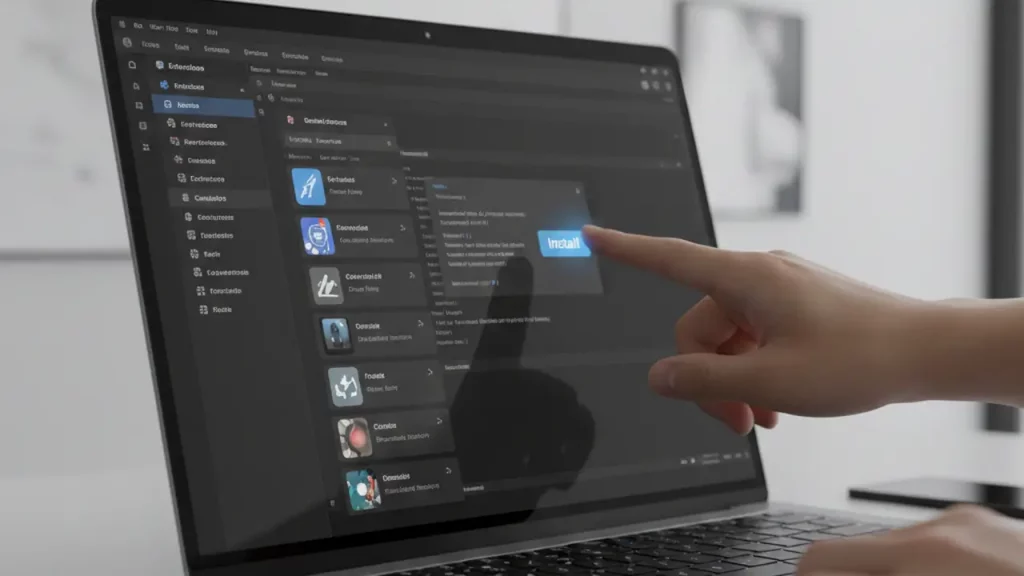
Cline VS Code autonomous coding agent — установка и старт (Cline VS Code extension install)
Getting started with the Cline VS Code autonomous coding agent is straightforward, especially with the Cline VS Code extension install process. If you’re new to VS Code extensions, don’t worry—it’s as simple as a few clicks. First, open your VS Code editor and head to the Extensions view by clicking the square icon on the left sidebar or pressing Ctrl+Shift+X (Cmd+Shift+X on Mac). In the search bar, type “Cline” and look for the official extension published by Saoud Rizwan. It’s the one with the description: “Autonomous coding agent right in your IDE.”
Click Install, and in moments, Cline will be ready. But before you dive in, you’ll need to configure an API provider since Cline is model-agnostic—it works with Claude, OpenAI, or others. Open the Cline sidebar (look for the new icon in the Activity Bar), and it’ll prompt you to set up your API key. For Claude users, grab your key from the Anthropic dashboard; for OpenAI, it’s from their developer platform. The docs recommend starting with Claude 3.5 Sonnet for best results, but you can switch models anytime in the settings.
Once installed, starting Cline is intuitive. Open a new tab via Command Palette (Ctrl+Shift+P) by typing “Cline: Open In New Tab.” You’ll see a chat interface where you can describe tasks like “Build a simple React app.” Cline will respond, asking for permissions as needed. For a smooth start, check the extension settings (gear icon) to enable features like auto-approve for safe commands—this speeds things up without compromising security.
Common tips for beginners: Ensure VS Code is up to date, and if you’re using forks like Cursor or VSCodium, Cline supports them too. If you encounter issues, the GitHub repo has a discussions section for quick help. Many users report that within minutes of install, they’re already boosting productivity. This easy setup is why Cline is ideal for newcomers— no steep learning curve, just immediate value in your coding workflow.
Cline is a perfect example of how 2025 shifted from “chatbots” to real, action-taking AI inside everyday tools. But it’s only one piece of the bigger wave. If you want the full map of what actually mattered in AI this year—models, agents, regulations, and surprises—read this roundup: https://aiinovationhub.com/ai-year-in-review-2025-trends-aiinnovationhub/

Cline VS Code autonomous coding agent rebranding and confusion of names (Claude Dev renamed to Cline)
The story behind Claude Dev renamed to Cline adds an interesting layer to the Cline VS Code autonomous coding agent. Originally launched as Claude Dev in 2024, this tool was tightly tied to Anthropic’s Claude models, earning praise for its agentic capabilities. However, as it evolved to support multiple LLMs like GPT and Gemini, the name no longer fit. In October 2024, the developers announced the rebrand to Cline, emphasizing its independence and broader compatibility. This change was shared via Reddit and the official GitHub, where the repo was updated to reflect the new identity.
Why the rename? It was largely for marketing and flexibility. As noted in LinkedIn discussions, tying the name to “Claude” limited perceptions, especially with growing support for other providers. The new name “Cline” (short for CLI and Editor) better captures its essence as a versatile, open-source agent. Users might still search for “Claude Dev,” but redirects and documentation guide them to Cline. This transition smoothed over potential confusion, with version 2.0 introducing streaming responses and better tool calling.
For those new to it, the rebrand didn’t alter core features—file creation, command execution, and browser use remain intact. Instead, it opened doors to innovations like MCP integration. If you’re coming from older tutorials, note that settings and commands are the same; just update your extension. The community embraced the change, with YouTube videos highlighting upgrades like DeepSeek support.
This evolution shows Cline’s commitment to openness. No longer “just a Claude tool,” it’s a platform-agnostic agent, reducing vendor lock-in. Beginners appreciate this, as it means future-proofing your setup. If name confusion arises, check the official site or GitHub for clarity—Cline is the future-forward version of what started as Claude Dev.

Cline VS Code autonomous coding agent why the open-source approach (open-source coding agent for VS Code)
What makes the Cline VS Code autonomous coding agent truly captivating is its open-source coding agent for VS Code foundation. Unlike proprietary tools, Cline’s code is publicly available on GitHub, inviting contributions from developers worldwide. This transparency fosters trust and rapid innovation—features like new API providers and bug fixes often come from community pull requests. As an open-source project, it’s free to use, with no subscription walls beyond your chosen AI model’s costs.
The appeal lies in customization. You can fork the repo, tweak behaviors, or add integrations tailored to your workflow. For instance, contributors have expanded support for third-party extensions and models, making it versatile for diverse environments. This contrasts with closed tools that limit modifications, positioning Cline as a flexible alternative. Beginners love it because it’s accessible—install via Marketplace, and you’re contributing to a living project.
Open-source also means better security scrutiny. The community reviews code, spotting vulnerabilities early, as seen in recent updates like .clineignore for file access control. Plus, it’s model-agnostic, letting you use local models for privacy-sensitive work. In forums like Reddit, users highlight how this approach avoids lock-in, unlike some competitors.
For introductory users, the open-source ethos encourages experimentation. Dive into the wiki for guides, or join Discord for tips. It’s not just a tool; it’s a community-driven ecosystem that evolves with user needs, making coding more collaborative and empowering.
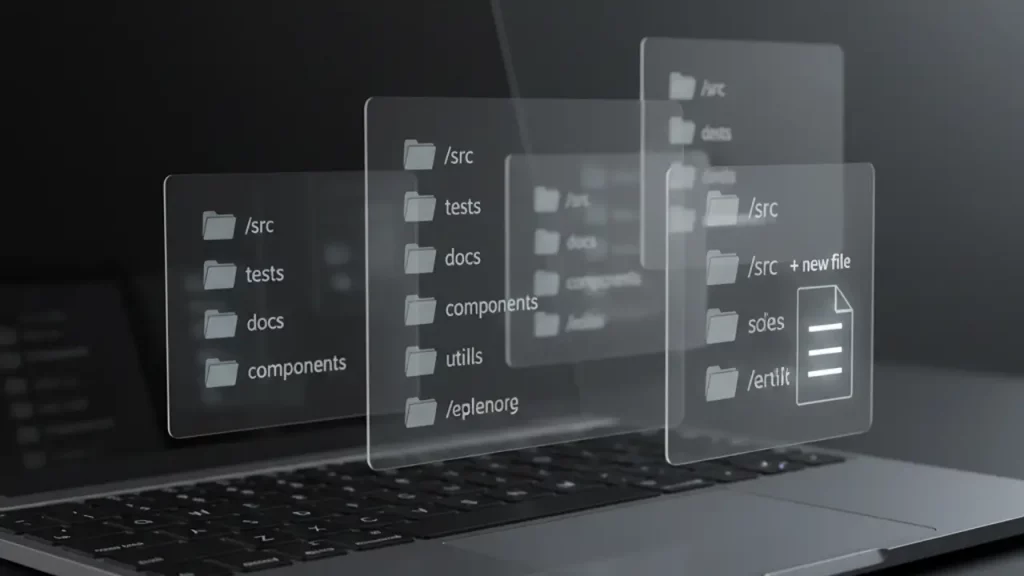
Cline VS Code autonomous coding agent how it creates the project structure (Cline create files automatically)
One of the standout features of the Cline VS Code autonomous coding agent is how Cline creates files automatically, streamlining project setup. When you describe a task, like “Build a basic Node.js app with routes,” Cline analyzes your request, plans the structure, and proposes new files. It presents changes in a diff view, letting you review and approve before application. This autonomy comes with safeguards—every creation requires permission, ensuring no unwanted alterations.
For beginners, this is a gentle introduction to AI-assisted structuring. Cline handles boilerplate, generating files like index.js or package.json, complete with code. It even suggests folder hierarchies for larger projects. Use mentions like “@file/path” to specify, or let it infer from context. In Plan Mode, it outlines files needed, then switches to Act Mode for creation.
Real-world use cases shine here: From scripting simple tools to full apps, Cline automates tedium. Docs emphasize mentioning paths for precision, and auto-approve speeds safe operations. This feature empowers novices to prototype quickly, focusing on logic over setup.

Cline VS Code autonomous coding agent -terminal under control(Cline run terminal commands)
The capability of Cline to execute terminal commands distinguishes the Cline VS Code autonomous coding agent as a sophisticated tool for controlled automation in development workflows. Leveraging the VS Code shell-integration API, introduced in version 1.93, Cline integrates directly with the user’s terminal to propose and run commands such as “npm install” or “git commit.” Upon identifying a necessary action during task processing, Cline presents the command in the chat interface, accompanied by an explanation of its purpose and anticipated impact. Execution proceeds only after explicit user approval, ensuring no actions occur without oversight.
This mechanism emphasizes a human-in-the-loop model, where permissions are required for each command. For instance, when addressing a task involving dependency installation, Cline will detail the command, its rationale, and any potential effects on the project structure before seeking confirmation. Once approved, the command runs in the integrated terminal, with Cline monitoring real-time output to detect errors, warnings, or successes. This allows for adaptive responses, such as suggesting fixes for build failures or adjusting subsequent steps based on results.
For professionals new to the tool, this feature serves an educational purpose by logging all commands, arguments, and outputs in the extension’s internal records, accessible via the Task History view. Outputs are preserved, enabling users to review and learn from command-line interactions. Integration with workflows like testing or deployment is seamless; beginners may initiate simple requests such as “Run unit tests,” prompting Cline to execute, analyze results, and propose resolutions. For long-running processes, such as development servers, a “Proceed While Running” option permits Cline to continue planning while monitoring background execution.
In enterprise settings, additional controls include policy-based options for predefined commands, though these remain opt-in and logged for compliance. This approach enhances productivity by automating repetitive tasks while maintaining security and transparency, as commands operate under the user’s terminal permissions without elevation.
Overall, this functionality positions Cline as a reliable assistant, reducing manual intervention in routine operations while fostering a secure and informative environment for code management.
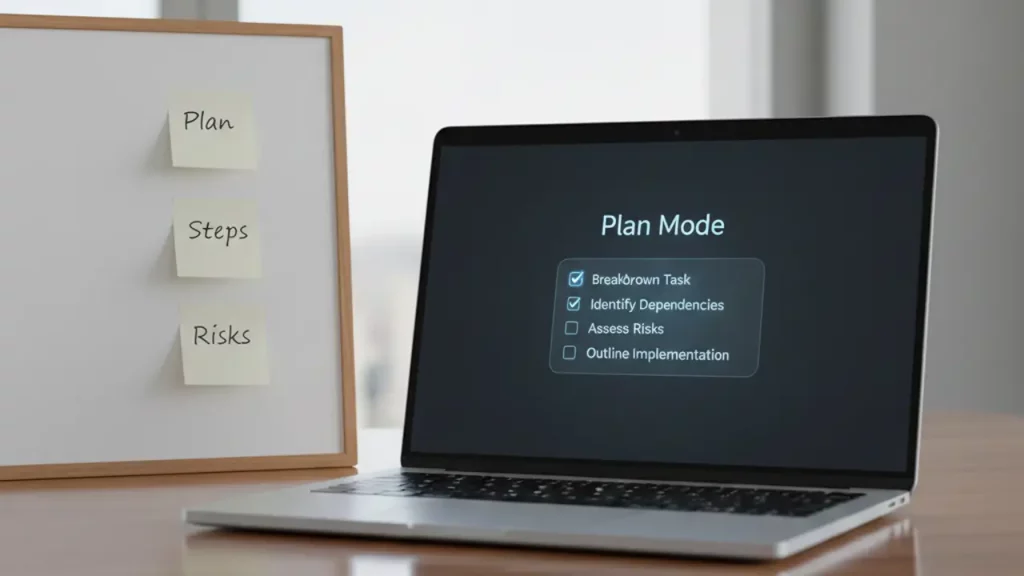
Cline VS Code autonomous coding agent Modes of thinking: plan vs execution (Cline Plan Mode)
The Cline Plan Mode within the Cline VS Code autonomous coding agent represents a structured methodology for task management, balancing foresight with execution. In Plan Mode, Cline engages in a deliberative process, outlining the necessary steps for a given task, including potential file modifications, terminal commands, and external integrations. This phase involves brainstorming the scope, reviewing relevant documentation, and presenting a comprehensive plan to the user for approval or refinement before any implementation occurs.
Transitioning to Act Mode, Cline shifts to execution, carrying out the approved steps sequentially. Each action, whether editing files or running commands, pauses for user confirmation, maintaining control throughout the process. This dual-mode system, as detailed in official documentation, promotes thoughtful development by separating strategy from action, thereby minimizing errors and ensuring alignment with user intentions.
For those new to the agent, Plan Mode offers structured guidance, particularly beneficial in complex projects. It reduces the likelihood of oversights by allowing users to visualize the entire workflow upfront. Keyboard shortcuts facilitate quick toggles between modes, enhancing efficiency. This approach encourages better coding practices, such as modular planning and iterative refinement, shifting the mindset from reactive to proactive development.
In practice, a user might request “Implement a new API endpoint,” prompting Cline in Plan Mode to map out required files, dependencies, and tests. Upon approval, Act Mode executes these elements step-by-step. This ensures developments are methodical and traceable, with checkpoints for reversion if needed.
The modes integrate seamlessly with other features, such as MCP for custom tools, extending Cline’s capabilities while preserving the planning-execution dichotomy.
This framework not only streamlines workflows but also educates users on systematic problem-solving, making it an invaluable component for both novice and experienced developers.

Cline VS Code autonomous coding agent Connect the tools via MCP (Cline MCP integration)
The integration of Model Context Protocol (MCP) elevates the functionality of the Cline VS Code autonomous coding agent by enabling connections to external tools and services. MCP servers facilitate the addition of specialized capabilities, such as API interactions, image processing, or custom scripts, which Cline can invoke during task execution. Installation involves sourcing MCP-compatible tools from the GitHub marketplace or community repositories, followed by configuration within Cline’s settings to establish seamless communication.
For introductory users, beginning with pre-built marketplace servers is recommended, as these provide out-of-the-box enhancements without requiring advanced setup. Advanced practitioners may develop custom MCP servers to tailor functionalities to specific needs, such as integrating proprietary APIs or specialized data processors. Once configured, Cline utilizes these tools transparently, incorporating them into plans and actions with the same approval workflow as native features.
This extensibility transforms Cline from a basic agent into a versatile platform, allowing for diverse applications beyond standard coding tasks. For example, an MCP tool might enable direct database queries or external service calls, enriching the agent’s decision-making with real-time data.
The integration adheres to security protocols, ensuring that MCP-invoked actions require user permissions and operate within defined scopes.
This customizable architecture empowers users to adapt Cline to unique workflows, fostering innovation and efficiency in software development.

Cline VS Code autonomous coding agent comparison with alternatives (Cline vs GitHub Copilot)
A comparison between Cline and GitHub Copilot underscores the distinctive strengths of the Cline VS Code autonomous coding agent. GitHub Copilot primarily excels in providing inline code completions and suggestions, leveraging AI to anticipate and generate snippets based on context. In contrast, Cline operates as an agentic system, capable of planning and executing multi-step tasks that encompass file creation, edits, terminal command execution, and external integrations.
Cline’s open-source foundation affords greater flexibility, allowing model-agnostic operations and community-driven customizations, whereas Copilot is integrated within the GitHub ecosystem, potentially limiting adaptability. For beginners, Cline’s conversational chat interface facilitates more interactive guidance, enabling natural language descriptions of complex tasks, while Copilot’s suggestions are more embedded and less dialogic.
Selection between the two depends on specific requirements: Cline suits scenarios demanding autonomy and comprehensive task handling, such as full project scaffolding or debugging workflows, whereas Copilot prioritizes rapid, inline enhancements for coding speed.
Both tools enhance productivity, but Cline’s emphasis on user-approved executions and extensibility via MCP provides a more controlled and expansive approach.
This differentiation positions Cline as a complementary or alternative solution for developers seeking deeper automation.

Cline VS Code autonomous coding agent security and final verdict + CTA (Cline security permissions)
Cline’s security permissions framework ensures the safe operation of the Cline VS Code autonomous coding agent. All actions, including file modifications and terminal executions, necessitate explicit user approval, preventing unauthorized changes. Features like .clineignore allow exclusion of sensitive files, while the open-source codebase permits thorough audits by users or organizations.
Commands execute under the user’s terminal permissions, avoiding privilege escalation, and enterprise editions offer audit trails, policy-based approvals, and private networking for enhanced compliance.
In verdict, Cline represents a transformative tool for efficient, secure coding practices. Professionals are encouraged to install the extension today to optimize their development workflows.
Discover more from AI Innovation Hub
Subscribe to get the latest posts sent to your email.